The
US International English keyboard layout is
recommended for those who are comfortable with the qwerty keyboard and need a variety
of accent marks or symbols. It uses an intuitive
method which works with most (perhaps all) Windows applications such as
MS Office and web page software,
while keeping the familiar qwerty layout. The installation details are
below.
To
use, press one of the
five punctuation keys ` ~ ^ ' " , then the letter
to be modified.
' + a = á, " + u = ü, ' + c
= ç etc
Or use the right alt (or AltChar) key + another key:
right alt
+ / = ¿ + 1 = ¡ +
c = © + e =
é +5
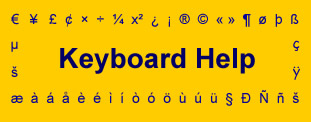
= €. This image
shows many more.
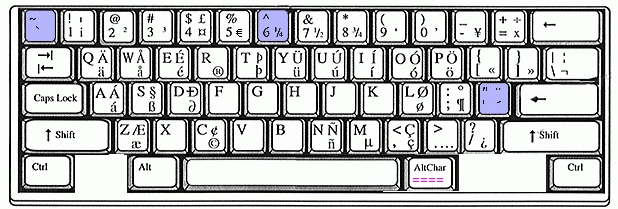
Note that this system maintains
the "qwerty" layout. However, the modifier
keys ` ~ ^ ' "
must sometimes be followed by pressing the space bar when they are actually intended.
The system accepts common words, such as it's, without the space bar.
Layout Installation
: Win XP:
Click Start, Settings, Control Panel, Regional and Language
Options. Click the Language(s) tab. Click Details, then Add.
Choose an Input language and a Keyboard Layout/IME. Use Apply to finish
the process; the Windows installation CD may be needed. The keyboard or multilanguage sections in Start - Help
may provide details. Screen images of the installation are here.
alt+shift
rotates through several
language keyboards.
Checking the Enable
Indicator On Taskbar puts
the default language on the taskbar. Or click the taskbar language
icon
to switch to another language. In Win XP, click the Preferences
section for these steps.
© 1999-2020 by Irene Starr |